Modern IT environments are ditching legacy directories and embracing cloud identity — but MacBooks have always been tricky when it comes to syncing logins with Entra ID (formerly Azure AD). That ends now.
With Platform SSO for macOS and Password Sync, you can:
- Let users sign into their Mac with their Entra ID password
- Automatically keep the password in sync
- And yes — even unlock FileVault at boot using their cloud credentials
This blog walks you through step-by-step configuration using Microsoft Intune, Apple Business Manager (ABM), and Automated Device Enrollment (ADE).
✅ Prerequisites
Make sure the following is in place before starting:
- Apple Business Manager (ABM) integrated with Intune
- Devices enrolled using Automated Device Enrollment (ADE) (manual enrollment won’t work)
- Microsoft Intune is licensed and configured (M365 Business Premium, E3, or E5)
- Devices are macOS 13 or later (macOS 14+ recommended)
- FileVault enabled via Intune policy
- Users have cloud-only or hybrid Entra ID accounts
🔧 What You’re Deploying
Using Password Sync mode in Platform SSO:
- The Entra ID password syncs to the local macOS account
- Users log in and unlock FileVault using their cloud password
- Passwords stay in sync across local and cloud
- Users get Single Sign-On into Microsoft 365 apps and web portals
🛠️ Step-by-Step Setup in Intune
Step 1: Create the Platform SSO Policy
- Sign in to the Intune Admin Center
- Navigate to:
Devices→macOS→Configuration profiles→ + Create profile - Choose:
- Platform: macOS
- Profile type: Settings catalog
- Click Create
- Under Basics, use:
- Name:
macOS - Platform SSO (Password Sync) - Description: Optional, but helpful
- Click Next
- Name:
- Under Configuration settings, click Add settings
- In the Settings Picker, search for and add the following:
- Under Authentication → Extensible Single Sign-On (SSO):
Authentication Method (Deprecated)(macOS 13 only)Extension Identifier
- Expand Platform SSO and select:
Authentication Method(macOS 14+)Token To User Mapping > Account NameToken To User Mapping > Full NameUse Shared Device KeysRegistration TokenScreen Locked BehaviorTeam IdentifierTypeURLs
- Under Authentication → Extensible Single Sign-On (SSO):
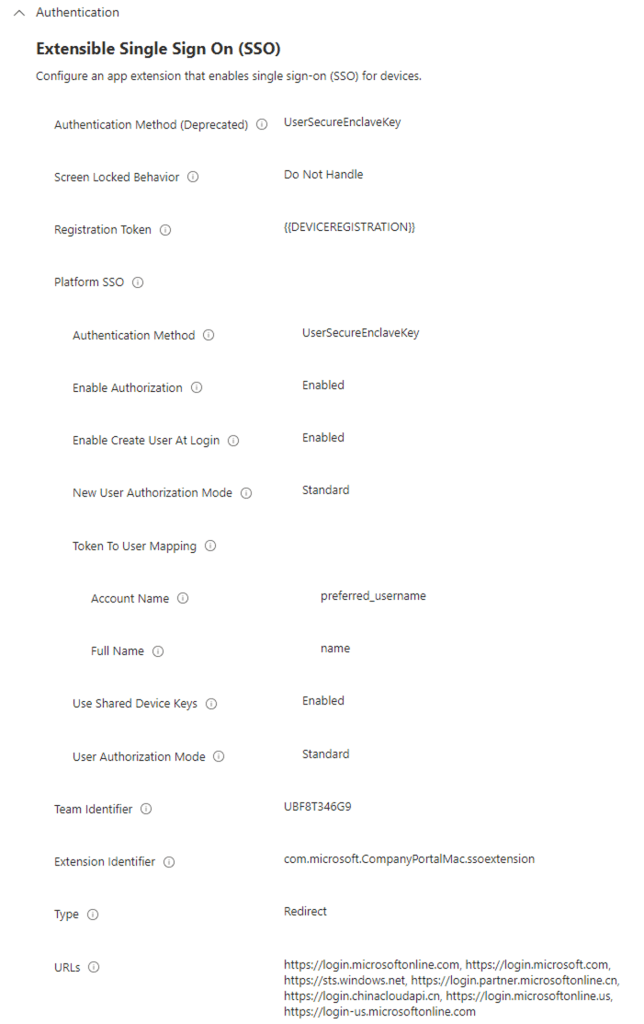
- Configure settings exactly as shown below:
| Setting | Value |
|---|---|
| Authentication Method (Deprecated) | Password |
| Platform SSO > Authentication Method | Password |
| Extension Identifier | com.microsoft.CompanyPortalMac.ssoextension |
| Platform SSO > Use Shared Device Keys | Enabled |
| Registration Token | {{DEVICEREGISTRATION}} |
| Screen Locked Behavior | Do Not Handle |
| Token To User Mapping > Account Name | preferred_username |
| Token To User Mapping > Full Name | name |
| Team Identifier | UBF8T346G9 |
| Type | Redirect |
| URLs | See list below |
- Add all the following URLs:
arduinoCopyEdithttps://login.microsoftonline.com
https://login.microsoft.com
https://sts.windows.net
https://login.partner.microsoftonline.cn
https://login.chinacloudapi.cn
https://login.microsoftonline.us
https://login-us.microsoftonline.com
⚠️ Note: If your environment has both macOS 13 and macOS 14+ devices, configure both
Authentication Method (Deprecated)andPlatform SSO > Authentication Methodin the same policy.
🎯 Important:
You want to use Password, not Secure Enclave.
Secure Enclave is token-based, doesn’t support password sync, and won’t unlock FileVault using cloud credentials.
Step 2: Assign the Profile
Assign the configuration profile to a dynamic group that targets only ADE-enrolled, supervised macOS devices.
🔒 Step 3: Enable FileVault via Intune
In order for Platform SSO to unlock FileVault using Entra ID:
- Go to:
Endpoint Security→Disk encryption - Create a macOS FileVault policy:
- FileVault:
Enable - Recovery key:
Store in Intune - Escrow location:
Intune
- FileVault:
- Assign the policy to the same ADE device group
🧪 Step 4: Test the Experience
Here’s what users should see during onboarding:
- Mac boots → FileVault screen appears
- User enters Entra ID password → Unlocks FileVault
- User logs into macOS with same Entra ID credentials
- Microsoft 365 apps (Outlook, Teams, OneDrive) auto-authenticate with SSO
- Passwords stay in sync — even after changing the cloud password
🚨 Gotchas and Limitations
- ❌ Manually enrolled Macs won’t work — must be ABM + ADE enrolled
- 🔄 If FileVault was turned on before Platform SSO was set up, you may need to reissue FileVault keys or re-enroll the device
- 🌐 Users must be online for password changes to sync
- ⚠️ Do not mix Secure Enclave and Password Sync methods in the same fleet
🤔 Why Not Use Secure Enclave?
Secure Enclave works on newer Macs and supports token-based login — but:
- It doesn’t sync passwords
- FileVault unlock uses cached tokens, not cloud passwords
- It creates friction when users change passwords and expect everything to update
Password Sync is better if:
- You want Entra ID as the single source of truth
- You need password consistency across cloud and device
- You want FileVault unlock to just work with cloud credentials
🧩 Wrap-Up
Platform SSO with Password Sync finally gives macOS users a consistent and secure login experience in Microsoft 365 environments — no third-party tools, no local directory hacks.
It’s clean, reliable, and manageable at scale.
And yes — you can finally unlock FileVault with an Entra ID password.
 Alex Dolney | Cloud & Infrastructure